Audio output
Sending music one place and timecode another.
On this page
How output works
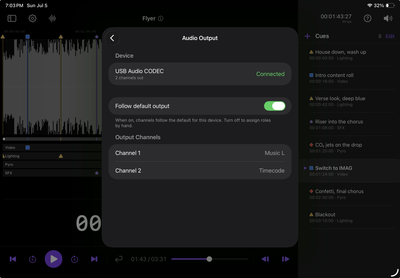
iPadOS still chooses the output device (pick your interface or headphones in Control Center as usual). On top of that, CueStack assigns each physical output channel a role, so music and timecode can go to different destinations.
Set roles in Settings → Audio Output (under the Playback section). Each channel can be Music L, Music R, Timecode, or unused.
Music vs. timecode levels
The volume slider affects music only. The timecode channel always plays at full level, because LTC has to stay strong enough to decode reliably. Turning the music down never weakens the timecode signal.
Default routing
CueStack picks a sensible default based on how many channels your interface has:
| Interface | Music | Timecode |
|---|---|---|
| Mono (1 ch) | Channel 1 | not available |
| Stereo (2 ch) | Channel 1 | Channel 2 |
| 3+ channels | Channels 1–2 (L/R) | Channel 3 |
Toggle Follow default output off in the routing screen to assign channels by hand. Any channel can take any role; you can also assign Timecode to more than one output (useful if your rig has two receiving devices).
Headphone-splitter rigs
No interface? An iPad headphone output plus a TRS to 2× mono splitter gives you two channels. Assign Music to one side and Timecode to the other, then run each side to its destination (music to the PA, timecode to the console).
If a striped track loads and no channel is assigned to Timecode, CueStack shows a routing warning with a shortcut to fix it.
The built-in iPad speaker can't be split, so timecode is never sent there; you'll see a calm informational banner instead. If the same interface reconnects reporting a different channel count, custom routing resets to the default for that count; re-check your assignments when that happens.
Speaker and Bluetooth safety
LTC is automatically muted on the built-in speaker, Bluetooth, and AirPlay outputs. This protects your audience from hearing the timecode signal. CueStack shows an info banner when this applies; both on-screen readouts, the timecode chip and the large readout below the cue lanes, keep counting even when the signal isn't being sent, so your position display stays accurate. Connect a USB audio interface or a headphone-to-splitter rig to route timecode out properly. See Timecode (LTC) for details on frame rates and pre-roll.