Overview
What CueStack does and how it works.
CueStack lets you mark the key moments in your music and replay any section the instant you need it. It is built for timing video, lighting, and live cues. Everything runs on your iPad. No account, no network.
The three-pane layout
CueStack opens as three side-by-side panes on iPad.
The left pane is your library. It lists your projects and the tracks inside them. Tap a track to open it in the editor.
The center pane is the waveform editor. Scrub the audio to find a moment, drop a cue at the playhead, and control playback with the transport bar. Tap the waveform to seek; use the transport bar to play and pause. A large timecode readout sits below the cue lanes, mirroring the timecode chip in the top-right corner; see Playback & remote.
The right pane is the cue list. It shows every cue on the current track in order. Tap a cue to jump to it and play from there.
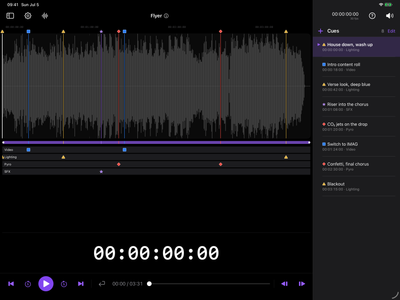
The sample show
CueStack ships with a sample show already loaded. It has cues placed and one track configured for timecode. Open it to explore how the app works before you build your own project.
Free vs full version
SMPTE/LTC timecode output and audio routing are built into the free version, and authoring cue actions for show control is free too. The full version adds sending those actions to your rig over OSC or MIDI, along with multiple projects, unlimited tracks, setlists, and exporting or importing project bundles.
Your first cue
A fresh install opens on an empty Projects list.
- Create a project. A project is one show. Tap + to create your first project and give it a name.
- Import a track. Open the tracks list and tap the import button. Pick audio from Files, iCloud Drive, a cloud provider, or a connected USB drive. See Importing your music.
- Add a cue. Play the track, or scrub to the spot you want. In the Cue Points list, tap + to add a cue at the current playhead. Choose its type and, if you like, add a short note.
- Play it back. Tap a cue to jump there and play to the end. Turn on Return to start to replay a section without re-arming.
CueStack reopens your last project and track the next time you launch.
Tapping the waveform scrubs the playhead. It does not drop a cue. Cues are added from the + in the Cues list, always at the playhead.
Next: Marking cues or Projects, tracks & setlists.