Show control
CueStack as a trigger source, and as something your console can drive.
On this page
Show control works two ways. Out: crossing a cue fires OSC or MIDI to other gear. In: a console, Stream Deck, or app drives CueStack's transport and cue navigation.
Setting it up
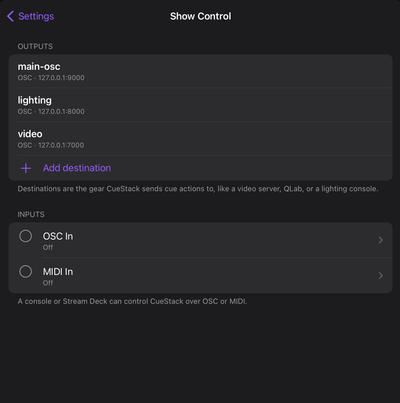
Configure everything in Settings → Show Control.
Destinations are named output roles (for example lighting or video)
that hold an actual address or endpoint. Cues target the role name, so you can
swap a physical device without re-authoring every cue. Three example destinations
are seeded when you first open Show Control (main-osc, lighting, video);
edit or remove them freely.
Arm toggle. The cue list has an Arm button. It starts disarmed every launch, so nothing fires on playback until you deliberately arm it.
Send now. The cue editor has a Send now button that fires a cue's actions immediately, useful for confirming the message reaches your gear. Send now works even while disarmed.
Authoring cue actions and configuring destinations are free. Emitting messages on playback and via Send now requires the full-version unlock.
Firing gear from cues (OSC out)
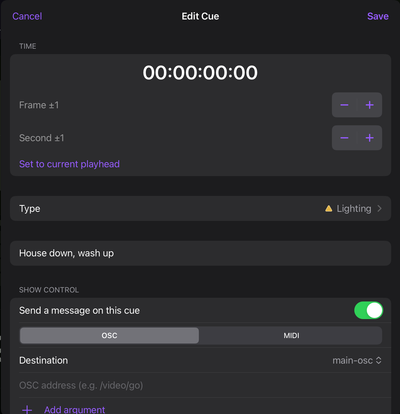
In the cue editor, enable Send OSC, pick a destination, and author the
message: an address string plus typed arguments (int, float, string, or
bool). Messages are sent as OSC 1.0 over UDP.
Firing gear from cues (MIDI out)
Enable Send MIDI, pick a destination, and choose the message kind and channel/number values your gear expects. Available kinds:
- Note (on/off)
- Control Change (CC)
- Program Change
- MSC: GO, STOP, and RESUME (command-format
0x7F, accepted by QLab and most consoles)
The virtual CoreMIDI source is named CueStack (other apps and DAWs subscribe to it). To drive a Mac over USB-C, target the IDAM MIDI Host destination; the virtual source is not exposed to a Mac over plain USB-C.
Driving CueStack remotely (OSC in)
Turn on Listen for OSC in Settings → Show Control → OSC In. CueStack listens on any network the iPad can reach: Wi-Fi, or Ethernet through a USB adapter. The screen lists this iPad's reachable addresses, tagged by interface, along with the port. Tap OSC Addresses to see the full address list, which also has a Copy address list button for pasting into Bitfocus Companion, TouchOSC, or a similar tool.
Default listen port is 8000 (configurable). Full address table:
| Address | Arguments | Action |
|---|---|---|
/cuestack/play |
none | Play |
/cuestack/pause |
none | Pause |
/cuestack/toggle |
none | Play/pause toggle |
/cuestack/stop |
none | Stop and return to start |
/cuestack/cue/next |
none | Next cue |
/cuestack/cue/prev |
none | Previous cue |
/cuestack/cue/goto |
int (1-based) |
Jump to cue number |
/cuestack/scrub/forward |
none | Scrub forward |
/cuestack/scrub/back |
none | Scrub back |
/cuestack/song/next |
none | Next song |
/cuestack/song/prev |
none | Previous song |
/cuestack/arm |
0 or 1 (no arg = toggle) |
Disarm / arm |
For /cuestack/cue/goto, CueStack also accepts a float (rounded to int).
For /cuestack/arm, it accepts bool, int, or float.
Driving CueStack remotely (MIDI in)
Turn on Listen for MIDI. Two protocol families work without any setup:
- MMC (Machine Control SysEx): Play, Stop, Pause
- MSC (Show Control SysEx): GO (jumps to the cue number in the message), STOP, RESUME
For everything else, use MIDI Learn: tap Learn on an action, send the message from your hardware, and the binding is saved. Bindings persist across launches. The 11 learnable actions are Play, Pause, Play/Pause (toggle), Stop, Next Cue, Previous Cue, Scrub Forward, Scrub Back, Next Song, Previous Song, and Arm/Disarm.
Learnable message kinds are Note, Control Change, and Program Change. MSC and SysEx are received automatically but cannot be bound via MIDI Learn.
OSC needs both devices on the same local network (the one place CueStack isn't fully offline). OSC listening pauses when the app is backgrounded and stopped; keep a track playing if you need to stay controllable from the background. Outbound cue triggers are best-effort, not sample-locked. For frame-accurate sync, use timecode.