Playback & remote
Driving playback on screen, by keyboard, and from the lock screen.
On this page
Seek vs play
Tapping the waveform seeks: it moves the playhead to that point without starting playback. Use it to position yourself before you press play. To start playback, use the transport bar at the bottom of the editor.
Transport
- Play/pause, jump back/forward 5 seconds, and scrub with the slider, with a
running
m:ssreadout. - The outer skip buttons move through your setlist. Skip forward jumps to
the next enabled track. Skip back returns to the top of the current track if
you are more than a few seconds in, and to the previous track otherwise. On a
hardware keyboard,
⌘[goes to the previous track and⌘]to the next. (Lock-screen and remote controls still step cue-to-cue; see below.) - In-app volume sets the level for the current track.
- Pinch to zoom the waveform horizontally to work at the resolution you need.
- Waveform display has two controls: an amplitude gain (¼× to 4×) and a size preset (tall, standard, or more lanes). Both change only the display, not playback.

Timecode readouts
The editor shows timecode in two places, driven by the same clock:
- The timecode chip in the top-right corner shows the current SMPTE value,
with the display mode captioned beneath it: the frame rate (for example
30or29.97 DF) in frames mode, ormsin milliseconds mode. Tap the chip to switch between Frames and Milliseconds. The same choice lives in Settings, Clock display. - The timecode readout below the cue lanes mirrors the chip in large, bare digits: glanceable from across the desk, or by a video operator chasing your timecode. It appears whenever a track is loaded, and the waveform size preset never shrinks it; the preset trades waveform height against the cue lanes.

On a striped track with gaps in its timecode, the chip captions its value
NO TC while both readouts keep counting through the gap. Generated timecode has no
gaps, so it never shows NO TC. On a track without timecode, both show
elapsed time instead, and the chip marks it NO TC.
Return to start
Turn on Return to start and the playhead returns to where playback began when you reach the end or pause, so you can run a section again without re-arming.
Cue-to-cue navigation
- Previous / next cue buttons step the playhead one cue at a time.
- On a hardware keyboard, ↑ or
[goes to the previous cue, ↓ or]to the next. - Navigation is clamped at both ends (no wrap) and respects play/pause: if you are playing, it jumps and keeps playing; if you are paused, it just moves the playhead.
Tap-a-cue behavior
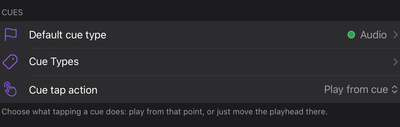
Tapping a cue can either play from that cue or move the playhead and stay paused. Choose which in Settings, Cue tap action.
Background audio & remote control
Audio keeps playing when the iPad is backgrounded or the screen is locked.
- Lock screen and Control Center drive play/pause, scrubbing, and previous / next cue (the buttons step cue-to-cue, greying out at the first and last cue). Now Playing shows the song title, the show name, and the app artwork.
- Headphone remotes: single-click play/pause, double-click next cue, triple-click previous cue.
Playback resumes after an interruption (such as a phone call) when the system allows, and pauses if the output device is removed. Unplugging headphones or Bluetooth will not suddenly blast the built-in speaker.