Marking cues
Marking moments, organizing them by type, and getting the times exact.
Cues are the core of CueStack. Each cue marks a moment in the track you want to jump back to during a show.
Adding a cue
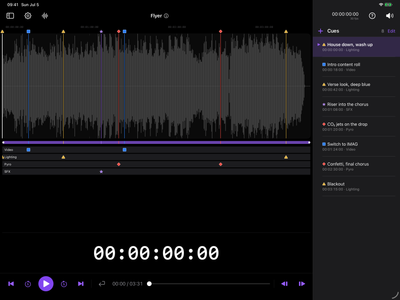
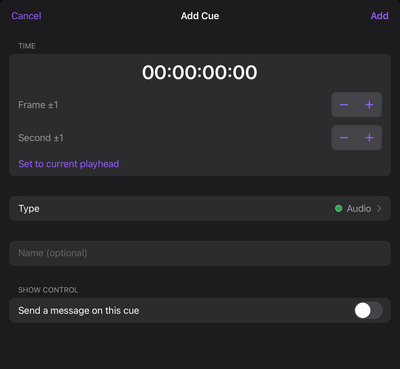
Cues are added at the playhead. Position the playhead (play, or scrub), then tap + at the top of the Cues list. In the sheet, pick a type, optionally add a note, and adjust the time before saving.
When no cues exist yet, the cue list shows "No cues yet" and the prompt "Tap + to add a cue at the playhead", so you always know what to do next.
Cue types
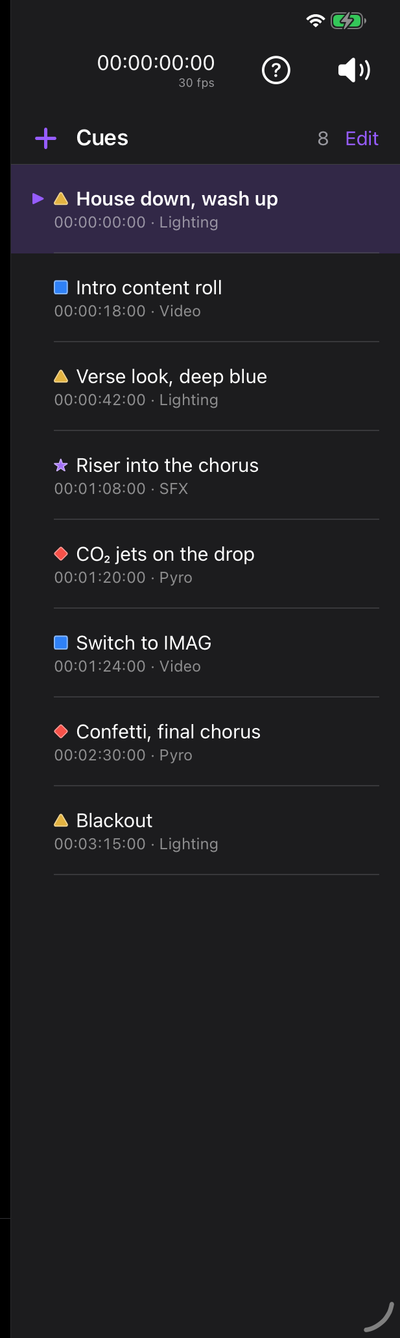
Every cue has a type: a name, a color, and a shape. Both color and shape are shown so cues stay distinguishable at a glance and remain readable for color-blind users. CueStack ships with a default set (Audio, Video, Lighting, Pyro, SFX), and the set is shared across every project. You can also make your own types and pick from an expressive set of marker icons.
Manage types in Settings, Cue Types: add, rename, recolor, reshape, reorder, and restore the defaults.
Reassign before delete. A type still used by cues cannot be deleted until those cues are moved to another type. CueStack prompts you.
The cue list
The Cues list (right side) is headed Cues with a running count, over rows of time, type,
note, with the time to a tenth of a second (m:ss.t). The active cue (the
last cue at or before the playhead) is highlighted and scrolled into view
automatically.
- Tap a row to jump there (and play, or just move the playhead, see Playback & remote for the setting).
- Tap the ⓘ button on a row (in edit mode) to open its edit sheet.
- Swipe a row to edit or delete it.
Retiming a cue
In the edit (or add) sheet, set a cue's time three ways:
- Nudge steppers: fine (±0.1 s) and coarse (±1 s).
- Set to current playhead: snaps the cue to where the player is now.
- Type an exact time: tap the readout and enter
m:ss.t(for example,1:30.4), or SMPTEHH:MM:SS:FFwhen the clock is in frames.
Cues stay sorted by time. After a retime, the edited cue scrolls into view and flashes briefly so you can see where it landed.
Gestures
On first load, CueStack shows a quiet hint over the waveform: "Tap to seek · drag to scrub."

Here is the complete waveform gesture vocabulary:
| Gesture | What it does |
|---|---|
| Tap | Seek: move the playhead without starting playback |
| Drag | Scrub silently through the track |
| Pinch | Zoom in or out on the waveform |
| Drag the bar below the waveform | Pan the visible range |
| Press and drag a cue marker | Retime the cue without opening the editor |
| Drag down while scrubbing | Slow the scrub to half, quarter, or fine speed for frame-accurate placement |
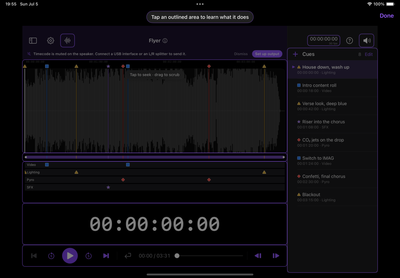
The slow-scrub and drag-to-retime gestures are the fastest way to place cues precisely against a frame-accurate timecode reference.